

 2 months ago
35
2 months ago
35
PROTECT YOURSELF with Orgo-Life® QUANTUM TECHNOLOGY
Orgo-Life the new way to the future Advertising by AdpathwayWhen I first looked into LinkedIn anonymous profile views, I expected a simple yes-or-no answer. Instead, I found a mix of old articles, unclear claims, and confusion about private mode, premium accounts, and browser Incognito Mode. So, can LinkedIn Premium see anonymous views?
You can open Table of Contents show
No. LinkedIn Premium cannot reveal the name or identity of someone who viewed a personal profile using full Private Mode.
A Premium subscription gives me more profile-view history, filters, and useful trends. It does not give me a secret way to uncover people who chose to stay private. LinkedIn clearly says that even Premium members cannot see the names of Private Mode viewers.
Someone using LinkedIn’s semi-private option may reveal a few work details, such as a job title, company, school, or industry. However, LinkedIn still does not show that person’s name.
In this guide, I will explain what LinkedIn Premium can see, what it cannot see, and how I can browse profiles privately. I will also explain the confusing 90-day and 365-day rules in plain English.
The Quick Answer
Here is the simple version:
| Your name and headline | Yes | Name, headline, location, industry, and visible profile details |
| Private profile characteristics | No | Limited details such as job title, company, school, or industry |
| Full Private Mode | No | “LinkedIn Member” without identifying details |
LinkedIn uses these three profile-viewing settings. The details shown depend on the setting selected by the person visiting the profile, not on whether the profile owner has Premium.
What I Checked Before Writing This Guide
I did not want to repeat claims from random blogs, so I checked LinkedIn’s current official pages about the following:
- Profile-viewing settings
- Private and semi-private browsing
- Basic and Premium viewer history
- Premium viewer filters and insights
- Sales Navigator privacy
- LinkedIn Company Page visitors
- Search suggestions and mini-profile views
I also compared LinkedIn’s separate references to 90 days and 365 days. Those numbers describe different parts of the profile-view feature, which is why so many articles mix them up.
One important note: the screenshot-style images prepared for this article are examples of how the result may look. They are not real captures from two live LinkedIn accounts. For a true first-hand screenshot test, I would replace them with screenshots taken from controlled accounts and add the exact test date and subscription plan.
What “Anonymous” Means on LinkedIn
LinkedIn does not use just one type of anonymous viewing. It gives me three choices.
1. Your Name and Headline
This is the public setting.
When I select this option and visit another person’s profile, that person may see:
- My name
- My headline
- My location
- My industry
- My profile photo
- A link to my profile
The exact display may change slightly, but the profile owner can identify me. This is useful when I want a recruiter, client, employer, or possible business contact to notice that I visited their page.
2. Private Profile Characteristics
This is the semi-private option.
When I use it, LinkedIn hides my name but may display a general description, such as the following:
- A marketing manager in the software industry
- Someone at a certain company
- A student at a certain university
- A person with a certain job title
- Someone working in a particular industry
LinkedIn says it may change the details shown to protect the viewer’s privacy.
The owner may be able to make a guess, especially if the company or team is small. Still, LinkedIn has not revealed the viewer’s name. A guess based on job details is not proof.
3. Full Private Mode
This is the most private choice. When I use full private mode, the other person normally sees “LinkedIn Member.”
They do not see my:
- Name
- Profile photo
- Headline
- Employer
- School
- Industry
- Direct profile link
This remains true even when the profile owner has LinkedIn Premium. LinkedIn says it respects the viewer’s privacy setting and does not let Premium members force anonymous viewers to reveal their names.
Can LinkedIn Premium See Anonymous Views?
Yes, but only when the viewer’s privacy setting allows it.
LinkedIn Premium Career and Premium Business offer more profile-view information than a free account. Depending on the plan and available data, Premium may show the following:
- A fuller viewer list
- Viewer data for up to 365 days
- Filters for company and industry
- Date-range filters
- Weekly viewer trends
- Top viewer locations
- Top industries and companies
- How people found my profile
- Interesting viewers, such as recruiters or senior leaders
- Sorting by recent or relevant viewers
These tools can help me understand who is interested in my work or profile. However, all of these insights remain limited by the visitor’s privacy choice.
Premium cannot show me:
- The name of a full Private Mode viewer
- The profile photo of an anonymous viewer
- A hidden viewer’s profile link
- The exact identity behind “LinkedIn Member”
- Proof that a certain recruiter or client created the anonymous view
- A way to turn an anonymous view into a public one
Premium gives me more information about visible viewers. It does not remove privacy settings.
Step-by-Step: How I Turn On LinkedIn Private Mode
I use the following steps when I want to visit profiles without sharing my name.
On a Desktop Computer
Step 1: Open LinkedIn
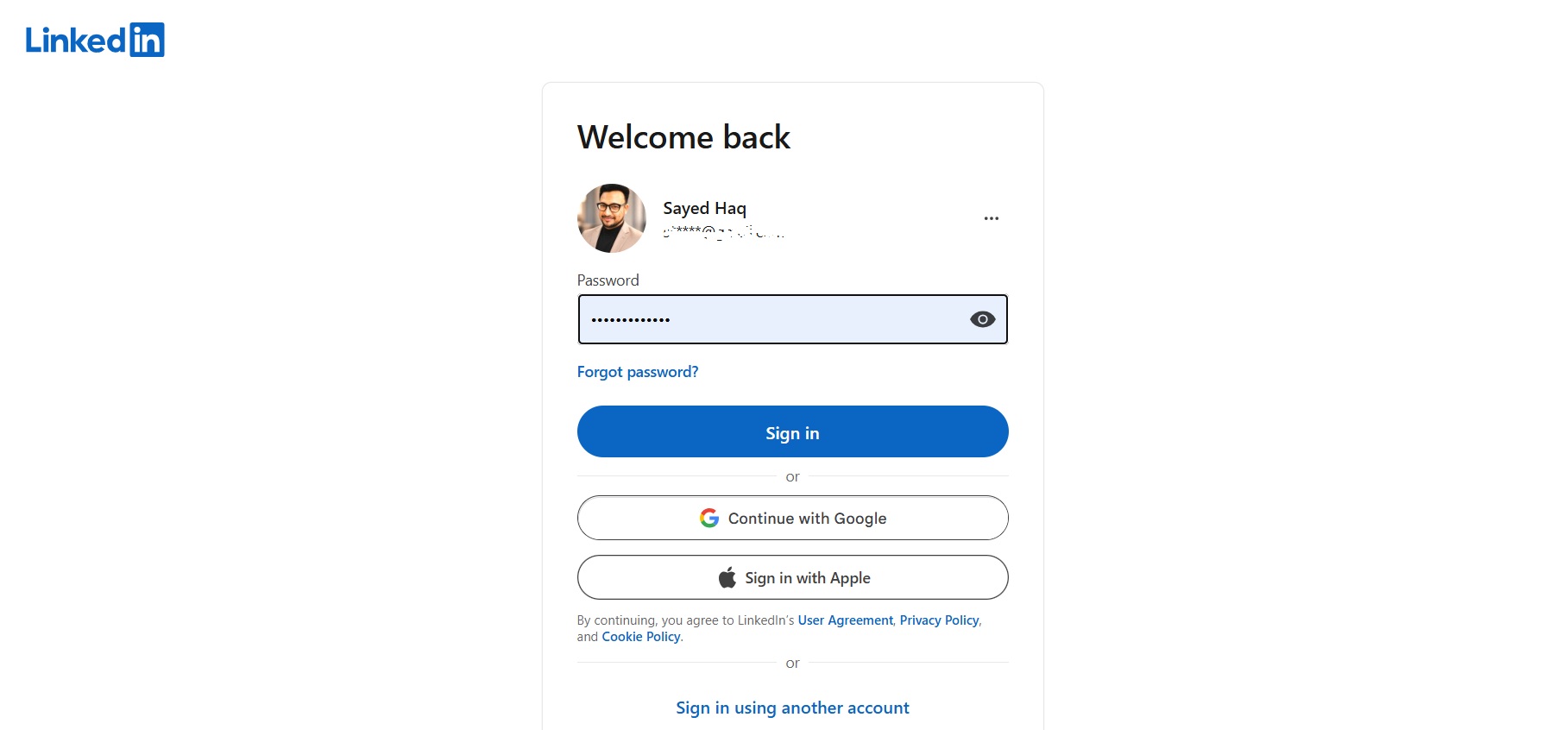
I sign in to my LinkedIn account from a web browser.
Step 2: Open the “Me” menu
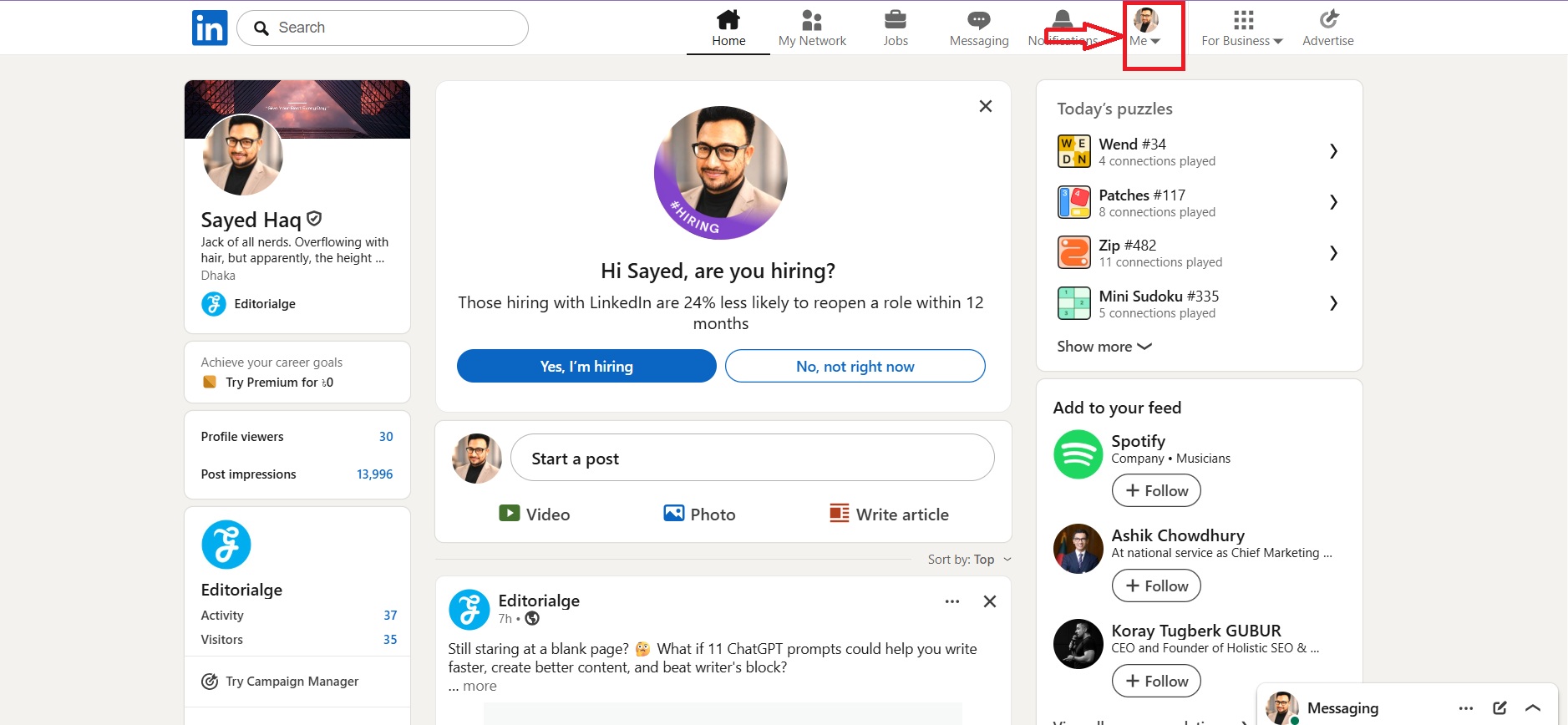
I click the Me icon near the top-right corner of the LinkedIn homepage.
Step 3: Select Settings & Privacy
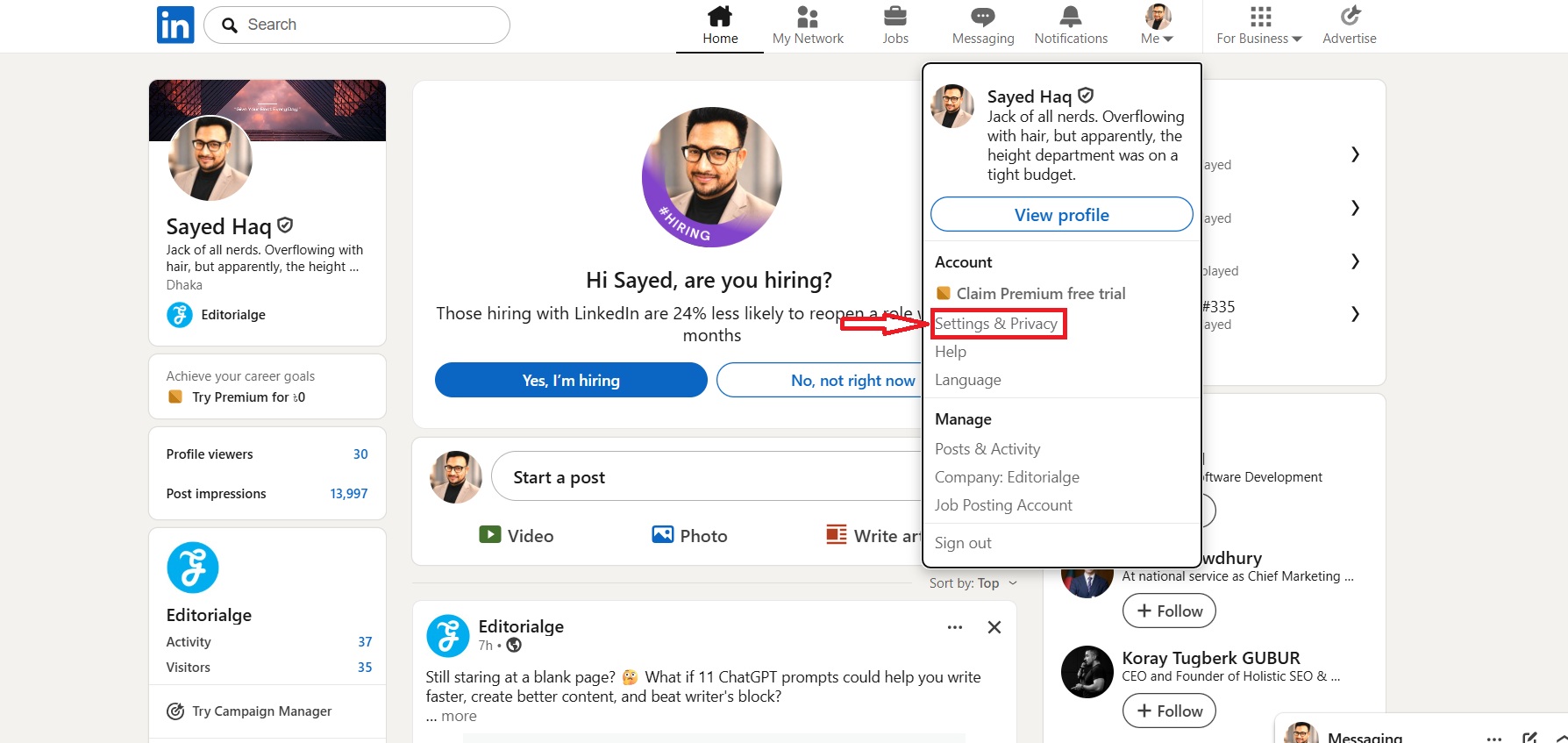
From the menu, I choose Settings & Privacy.
Step 4: Open Visibility
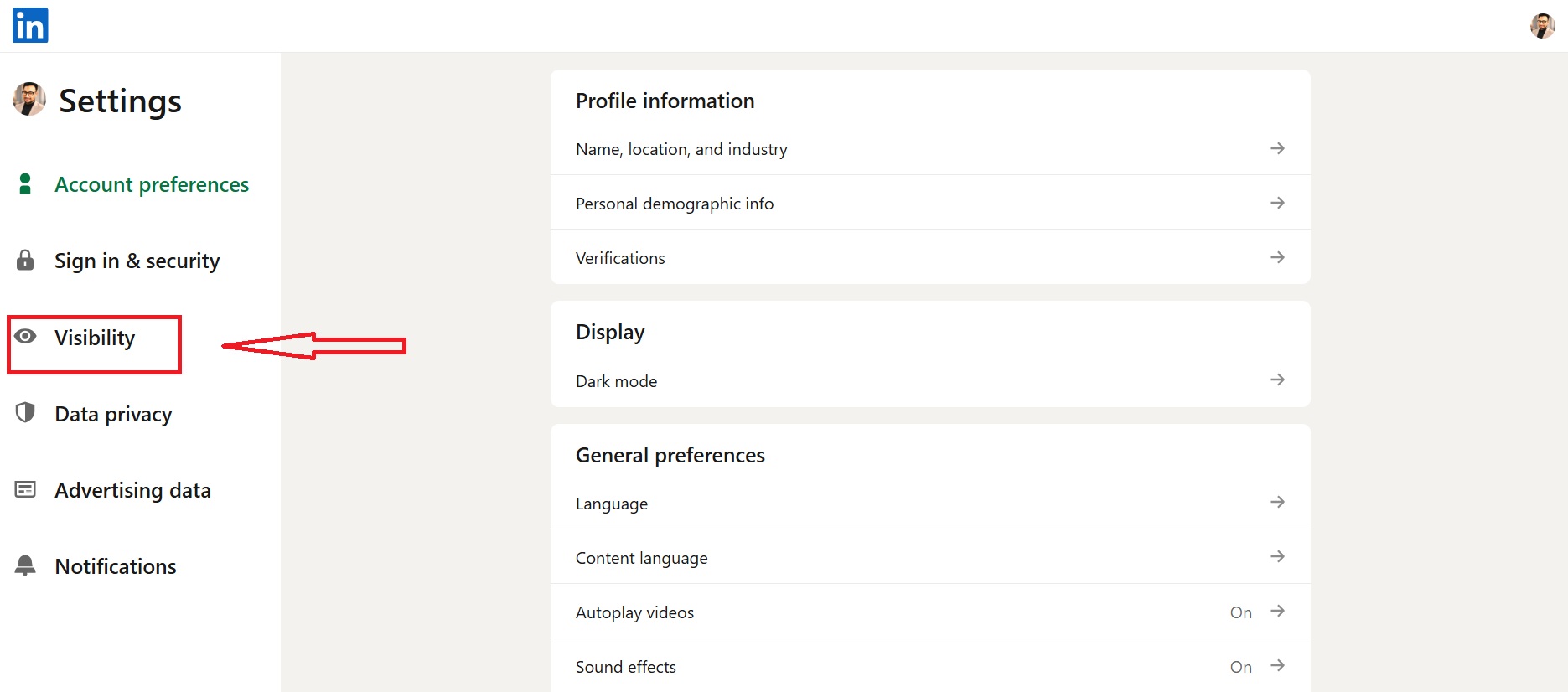
In the left-hand menu, I click Visibility.
Step 5: Find Profile Viewing Options
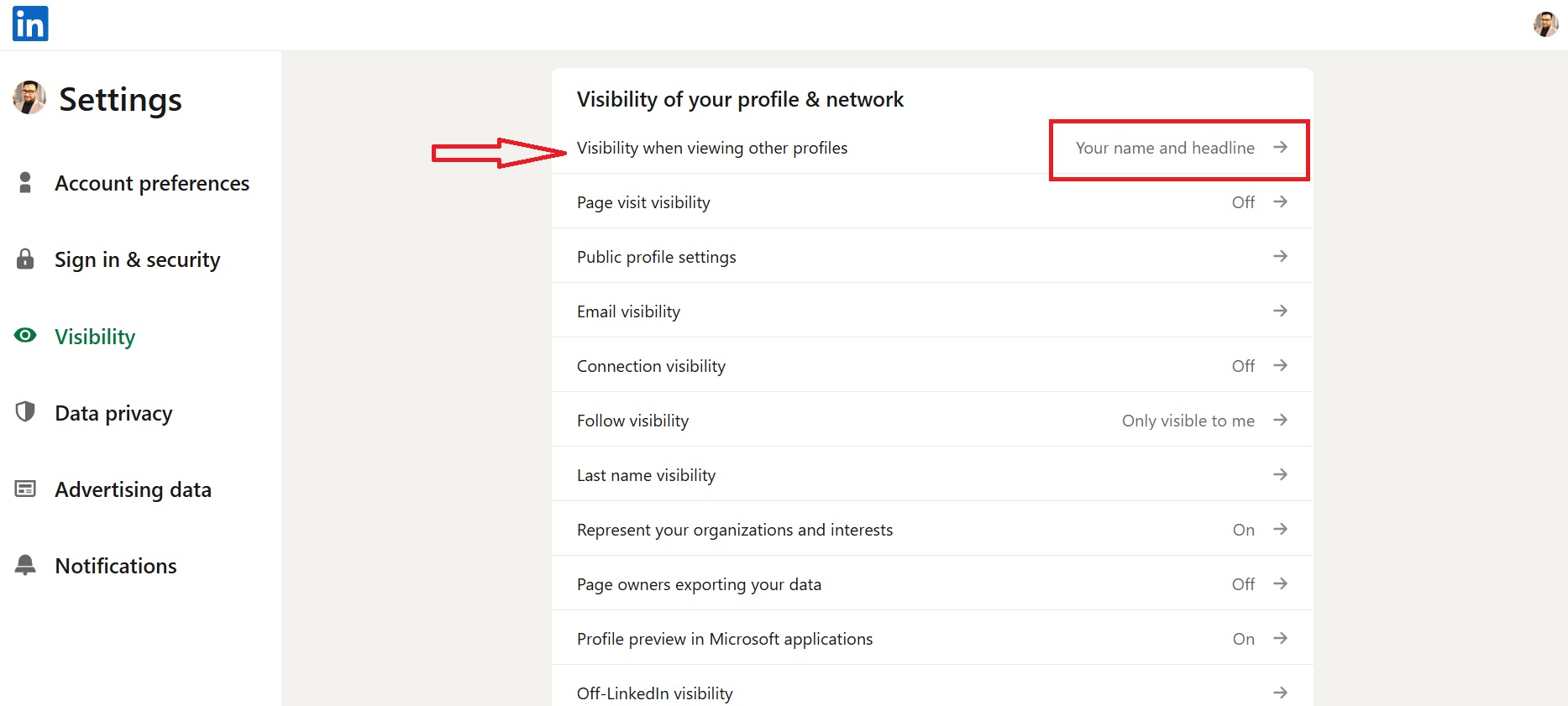
Under Visibility of your profile & network, I click Visibility when viewing other profiles.
Step 6: Choose Private Mode
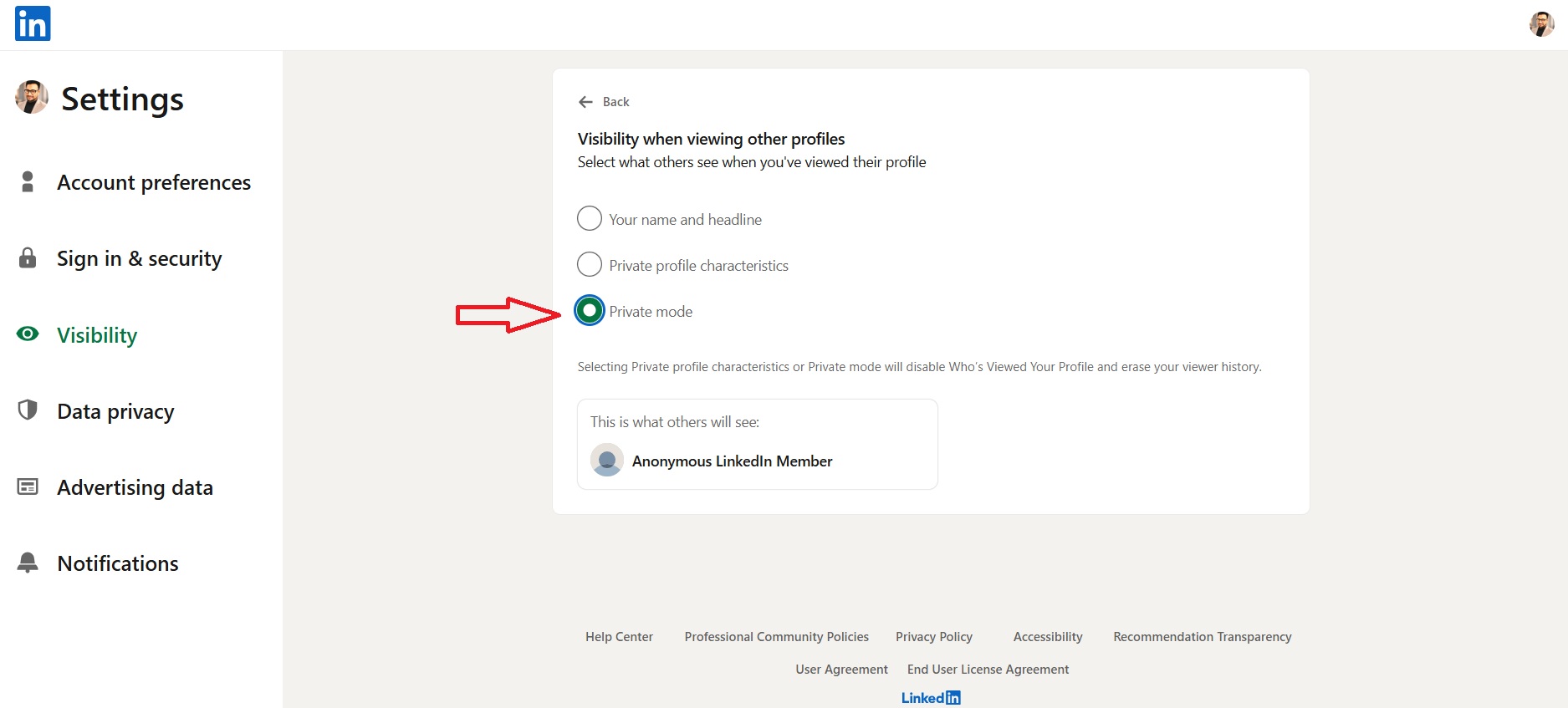
LinkedIn gives me three choices:
- Your name and headline
- Private profile characteristics
- Private Mode
I choose Private Mode.
LinkedIn saves the change automatically.
In the LinkedIn Mobile App
Step 1: I open the LinkedIn app.
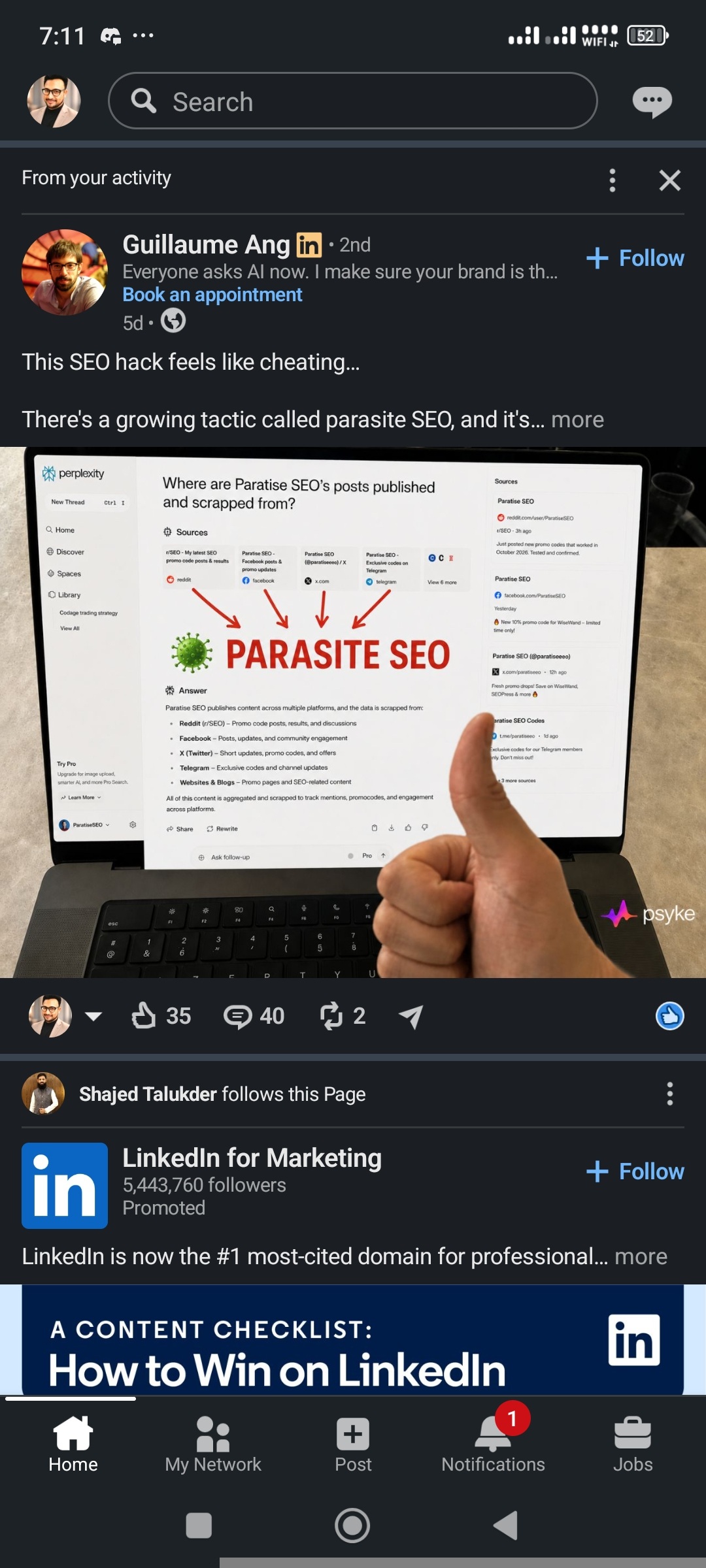
Step 2: I tap my profile photo.
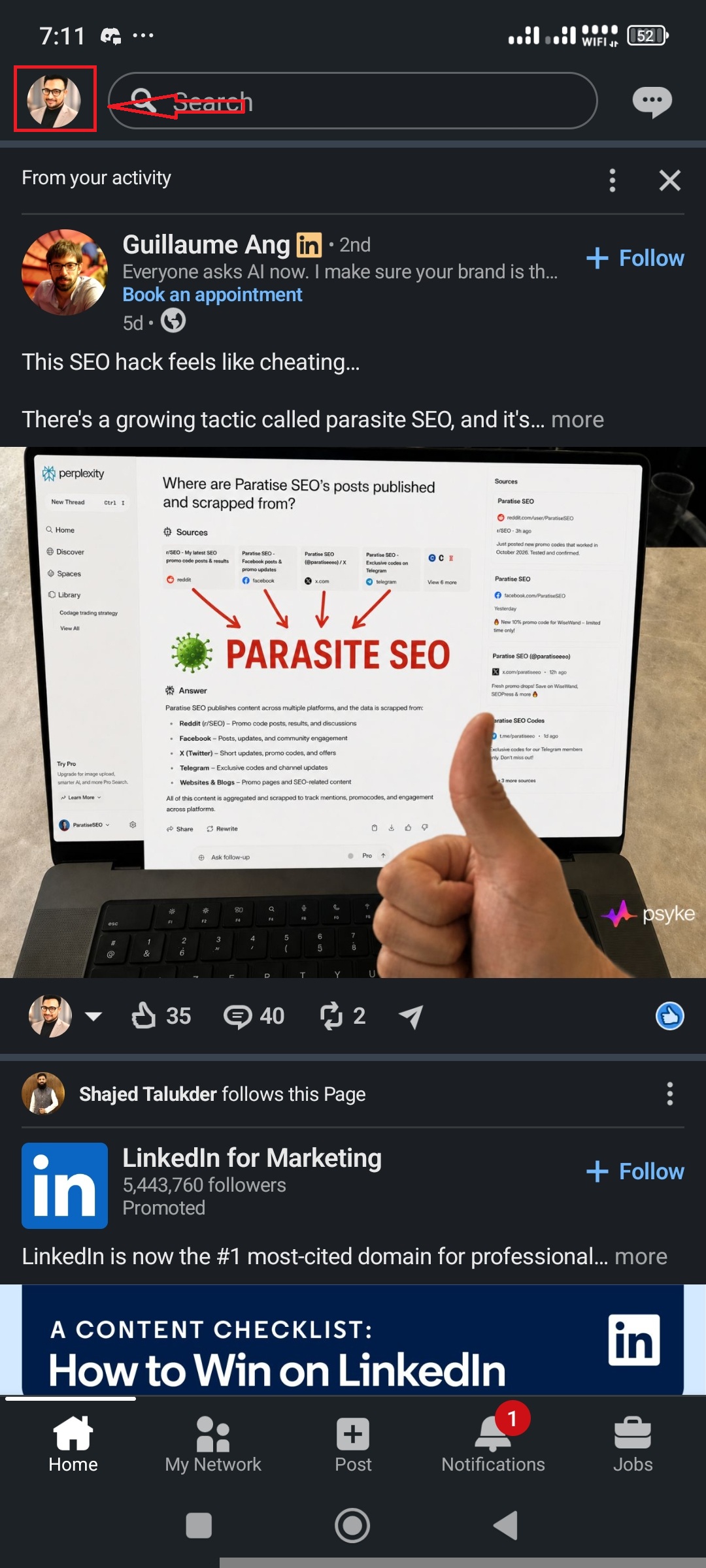
Step 3: I tap Settings.
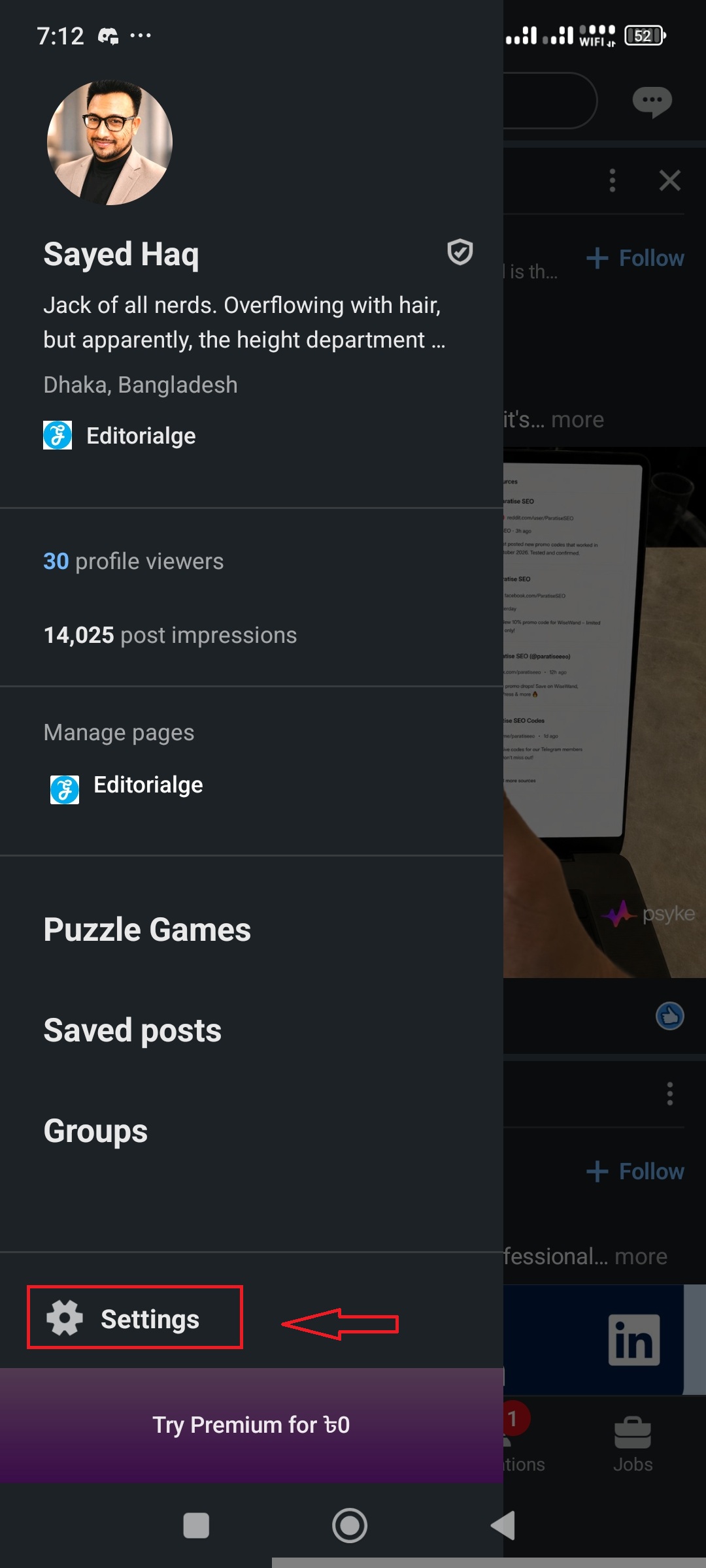
Step 4: I open Visibility.
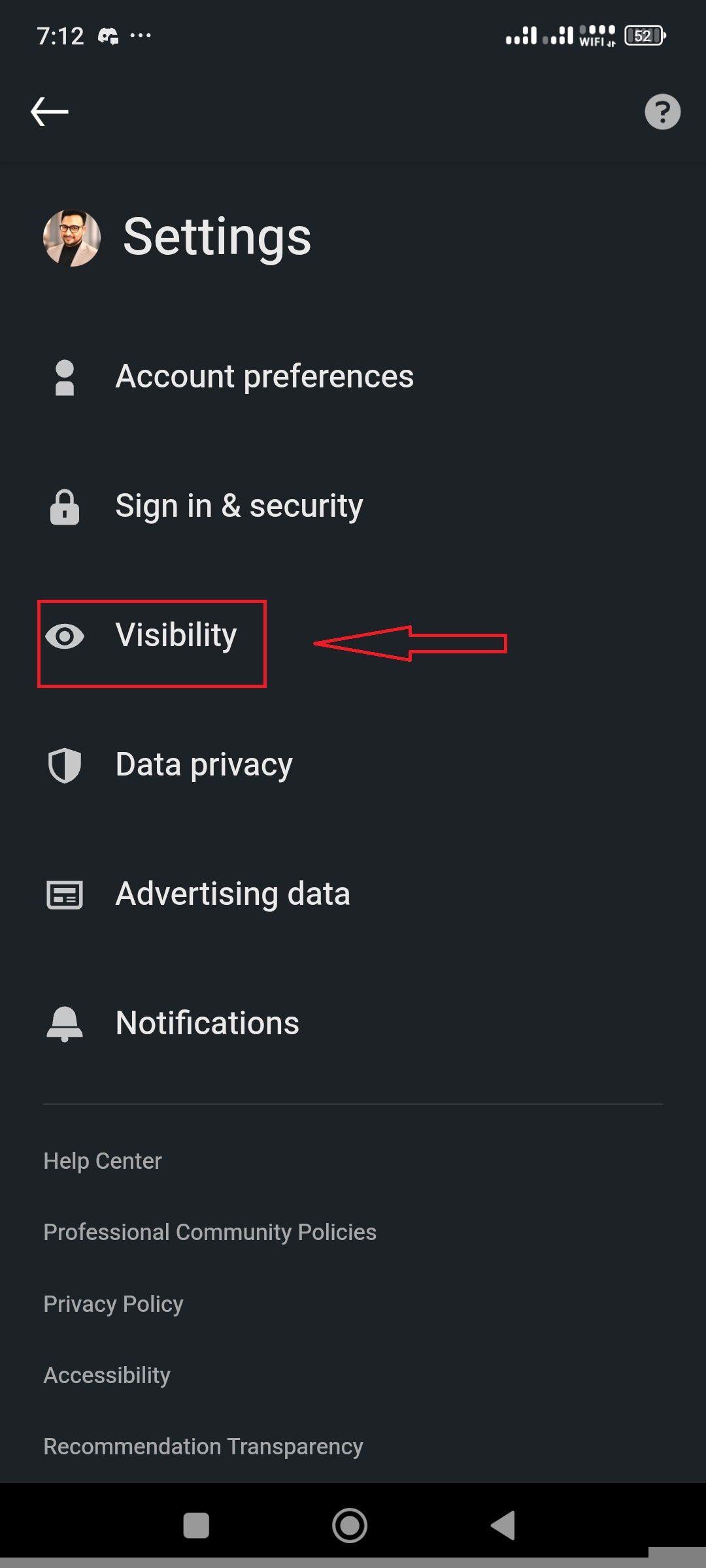
Step 5: I tap Visibility when viewing other profiles.
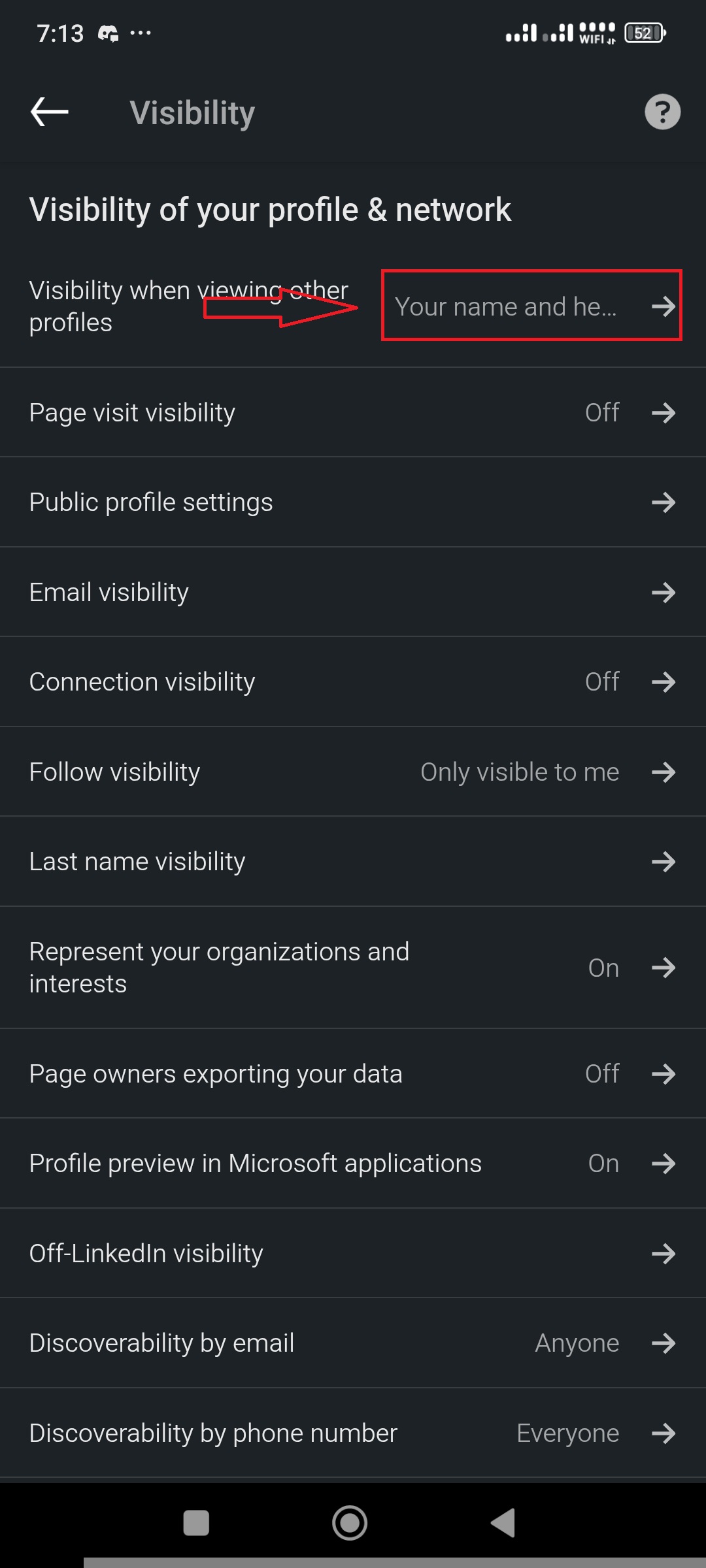
Step 6: I choose private mode.
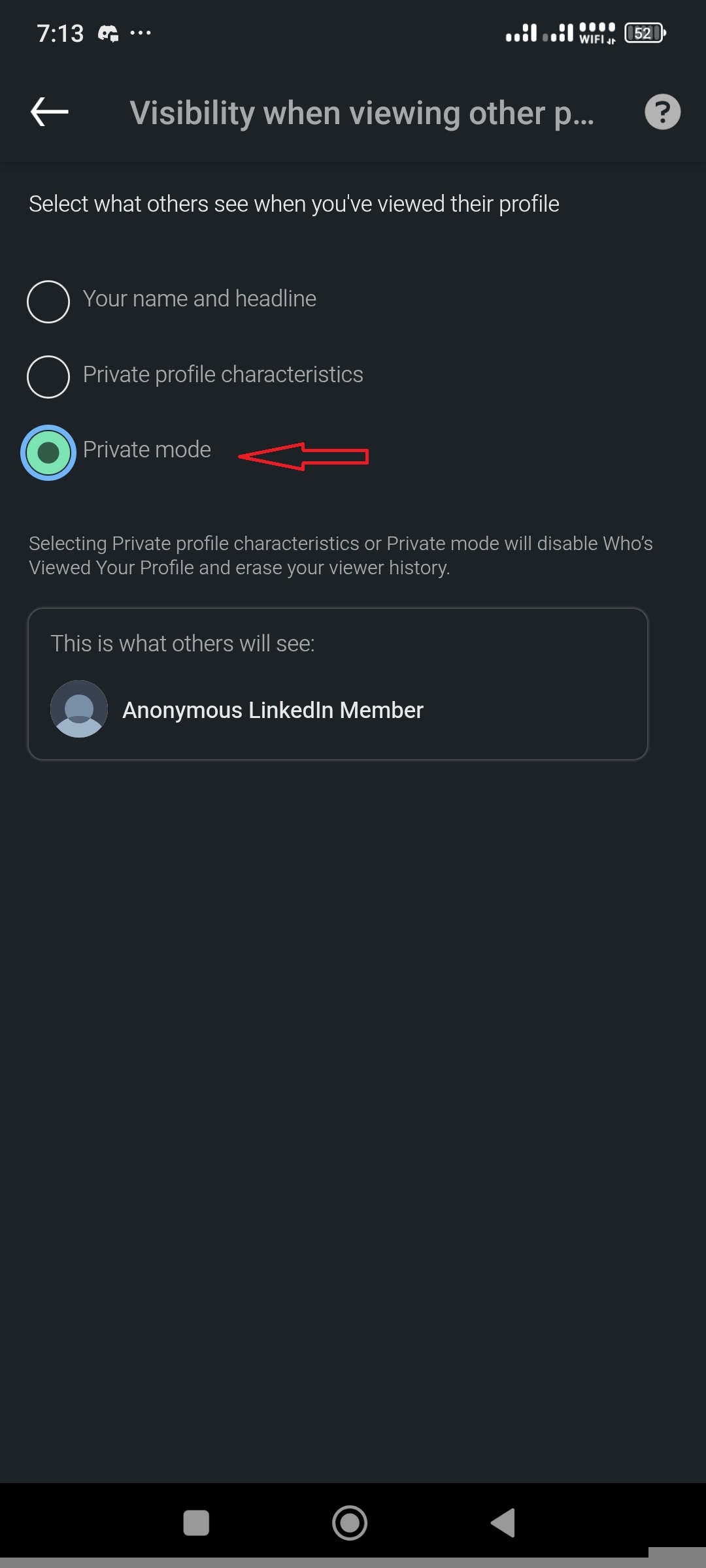
The mobile app also saves the change automatically.
What I Check Before Opening a Profile
Before I view someone’s page, I check that Private Mode is already selected.
I do this before opening the profile because I do not assume that changing the setting later will hide an earlier public visit. LinkedIn’s official pages do not clearly promise that privacy-setting changes work backward.
I also remember that Private Mode only hides the profile visit. It does not make my other actions anonymous.
People can still identify me if I:
- Send a connection request
- Follow them
- Like their post
- Comment on their content
- Send a message
- React to a newsletter or article
Step-by-Step: How to Check Who Viewed My Profile
On Desktop
Step 1: First, sign in to LinkedIn.
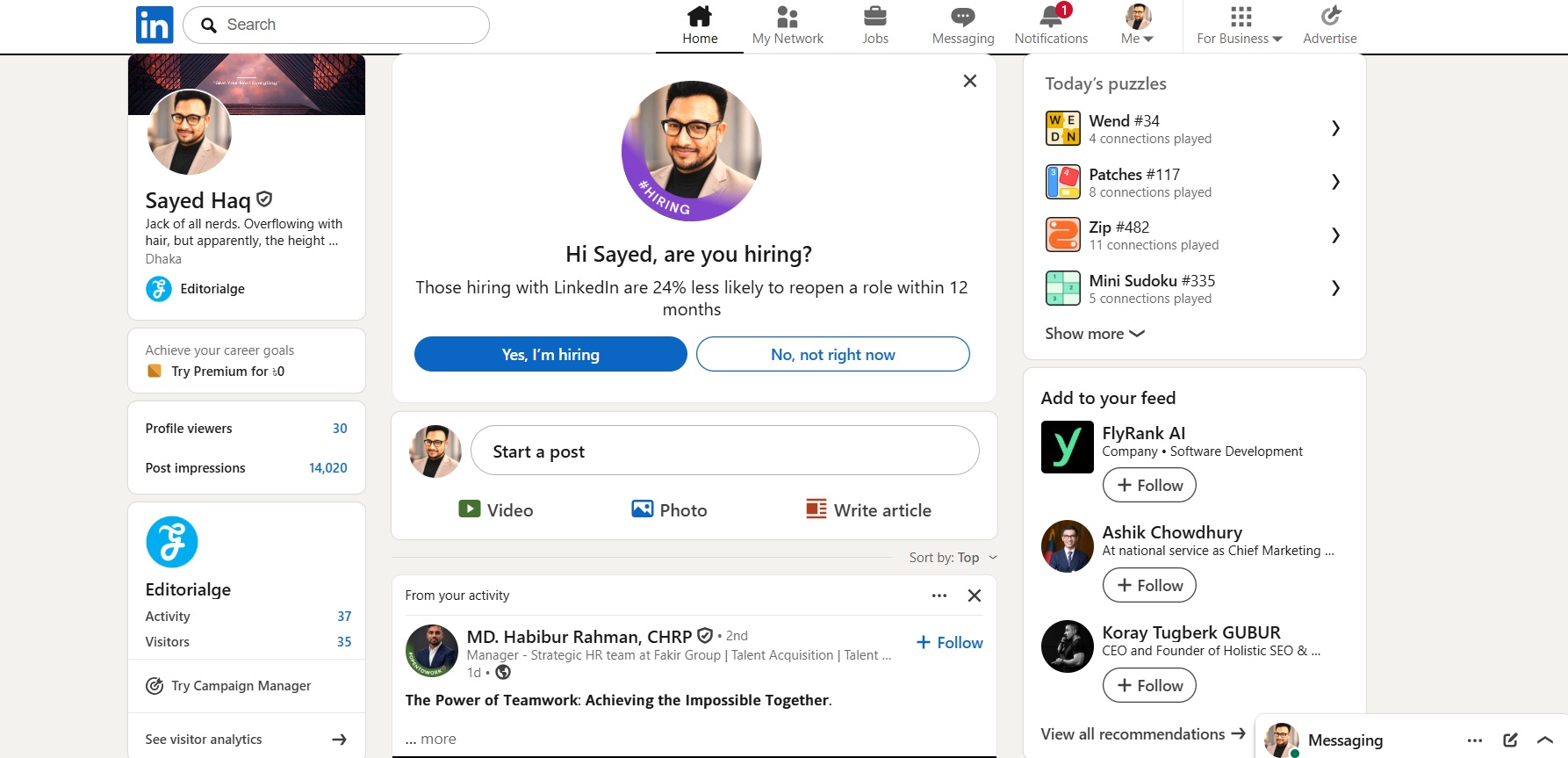
Step 2: Now open your profile by clicking on your name.
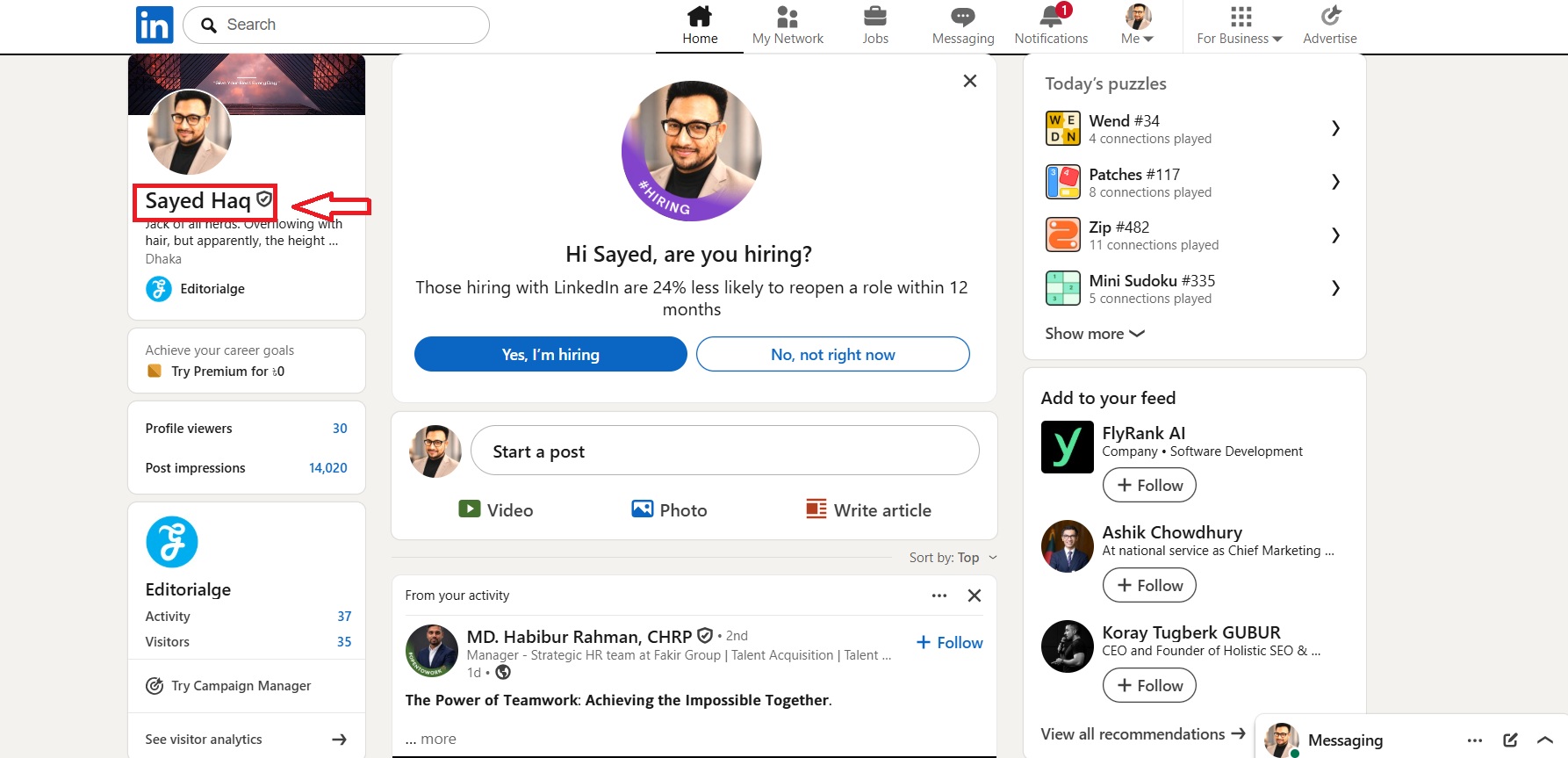
Step 3: Find the “Analytics” section near the top of your profile.
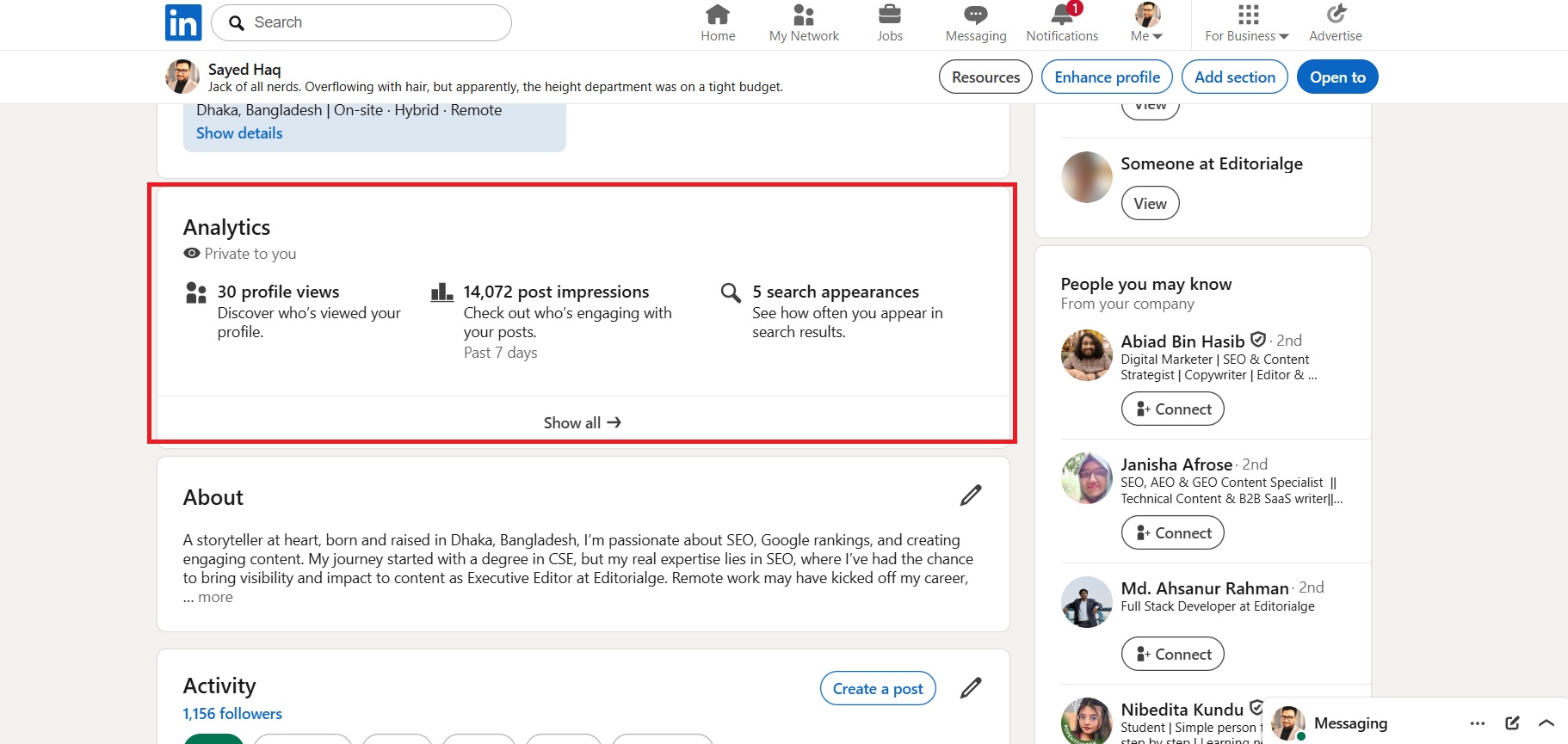
Step 4: Now click “Discover who’s viewed your profile.”
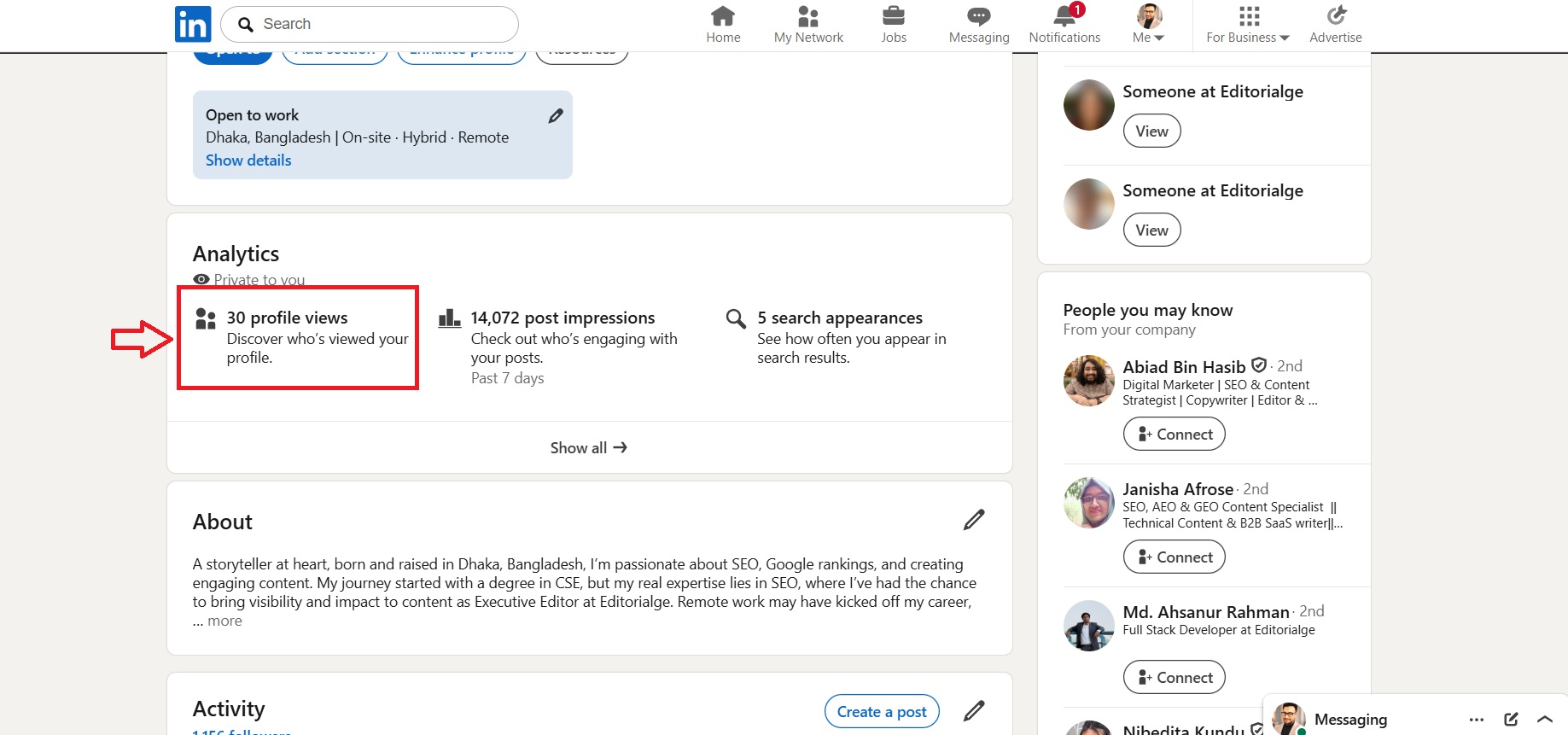
Step 5: If you have Premium, use the available filters to review viewers by date, company, industry, or other categories.
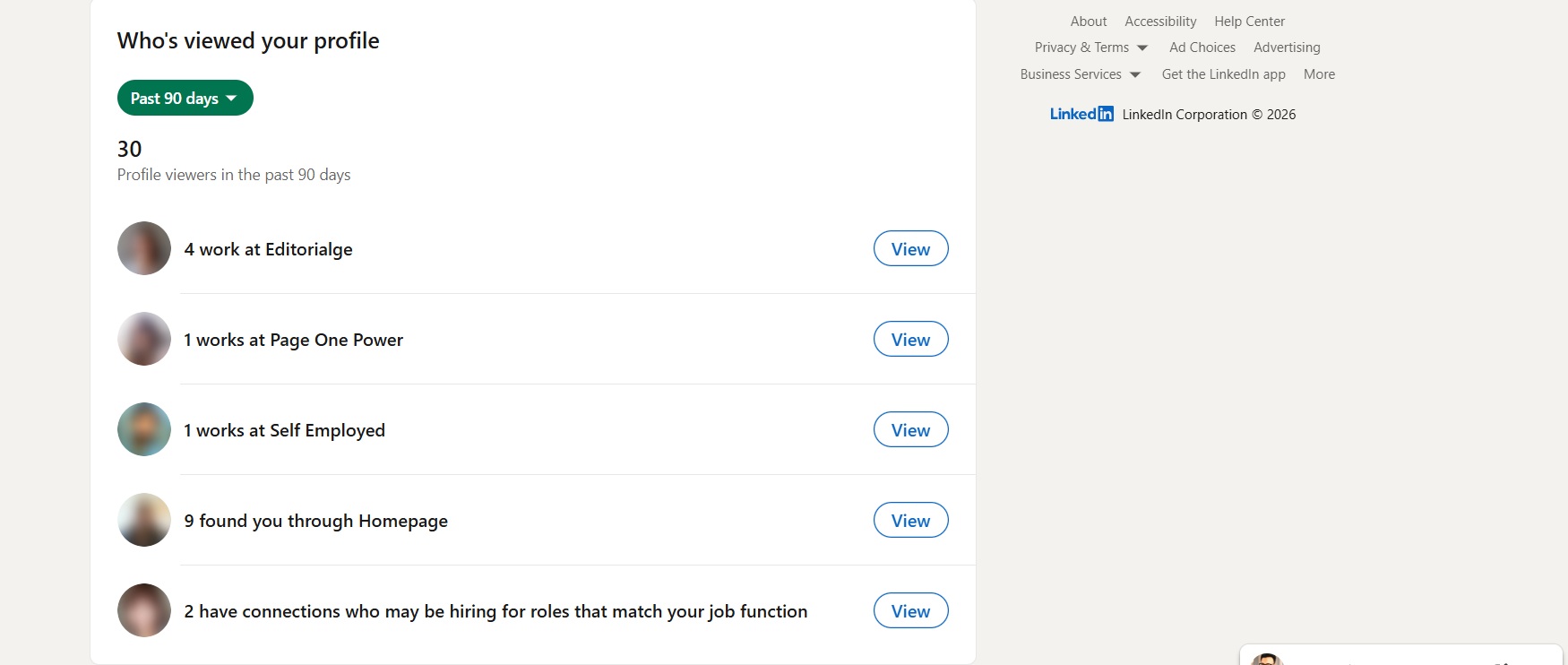
The information I see will depend on my plan, my own viewing setting, and the privacy choices made by the people who visited me.
A Basic member who publicly shows their name and headline can currently see the three most recent viewers from the last 90 days. Eligible Premium Career and Premium Business members may see a fuller viewer list and up to 365 days of viewer data.
The 90-Day and 365-Day Rules Explained
This is the part that caused me the most confusion. LinkedIn currently mentions both 90 days and 365 days, but the two numbers do not mean exactly the same thing.
What the 365-Day Rule Means
LinkedIn says Premium Career and Premium Business can provide viewer lists, trends, and insights for up to 365 days. The date filter may start with a shorter period and allow eligible users to extend it to 365 days.
What the 90-Day Rule Means
LinkedIn also says a Premium member can browse in Private Mode and still see the people who viewed their own profile during the last 90 days.
A basic user who changes to private or semi-private viewing loses access to their own viewer history.
So I understand the rules this way:
- Up to 365 days refers to the wider viewer-history benefit for eligible Premium Career and Business plans.
- 90 days refers to the viewer-list access LinkedIn specifically promises when a Premium member is browsing privately.
Neither rule reveals the names of people who used full private mode.
What Happens With a Free LinkedIn Account?
A basic account can still use private mode.
However, there is a trade-off.
If I have a free account and choose Private Mode or private profile characteristics, LinkedIn does not let me see my own viewer history. To see your recent viewers as a basic user, you must choose your name and headline when you visit other profiles.
LinkedIn currently says a basic user with public viewing enabled can see the three most recent viewers from the last 90 days.
Some older articles claim that free users can see five viewers. That information is no longer valid.
LinkedIn Private Mode Is Not Browser Incognito Mode
This is another common mistake.
Chrome’s Incognito Mode mainly limits what Chrome saves on my device after I close the Incognito session. For example, Chrome does not keep the same local browsing history or site data after the session ends.
Google also makes it clear that Incognito Mode does not make me invisible to websites.
That means opening LinkedIn in an Incognito window does not automatically hide my LinkedIn profile visit.
If I sign in to LinkedIn in Incognito Mode and my LinkedIn profile-viewing option is set to “Your name and headline,” the other person may still see my identity.
To hide your identity on LinkedIn, you need to change the setting inside LinkedIn.
| Controls what a LinkedIn member sees | Yes | No |
| Hides my name during profile visits | Yes | No |
| Reduces local browser history | No | Yes |
| Changes my LinkedIn account setting | Yes | No |
| Makes me invisible to websites | No | No |
I found no official rule saying Sales Navigator can reveal a full Private Mode viewer.
Sales Navigator has its own profile-viewing settings. Users can choose:
- Their name and headline
- Private profile characteristics
- Full Private Mode
LinkedIn also warns that changing the setting in Sales Navigator does not automatically change the setting on regular LinkedIn. I need to check each one separately. Sales Navigator can provide sales information and signals, but it does not cancel a member’s private mode choice.
What About LinkedIn Company Pages?
Personal profile visits and company page visits are different.
LinkedIn has a separate setting called Page visit visibility. If I leave that setting turned on and visit a LinkedIn company page, the page’s admins may be able to see information such as my:
- Full name
- Photo
- Job title
- Industry
- Location
- Company
The exact amount of data depends on the page subscription and my privacy setting.
LinkedIn says company page visit visibility is separate from the setting used for personal profile views. It also says an earlier page visit may remain visible for up to 365 days if page visit visibility was turned on at the time.
So, turning on Private Mode for personal profiles does not automatically answer every Company Page privacy question. I check both settings.
Does Clicking a Search Suggestion Count as a Profile View?
LinkedIn says that when I select a specific person from search suggestions, LinkedIn may open a mini-profile. That action can count as a profile view and may cause a notification, depending on my current viewing setting.
For that reason, I switch to private mode before:
- Opening a full profile
- Clicking a person in search suggestions
- Opening a mini-profile from the search page
Simply seeing a name in a search list is not always the same as selecting and opening the person.
Can Third-Party Tools Reveal “LinkedIn Member”?
I would not trust a tool that promises to uncover the person behind an anonymous LinkedIn view. LinkedIn itself does not give Premium users the name of a full Private Mode viewer. It also says users cannot force those viewers to reveal themselves. However, if you want to try any third-party LinkedIn tool, this guide will help you.
Based on that rule, any outside service claiming it can always reveal “LinkedIn Member” should be treated with care.
Some tools may make guesses by looking at:
- Recent connection requests
- Messages
- Profile follows
- Comments and reactions
- Public activity
- The time of a profile view
Those clues may suggest who visited, but they do not prove it.
I would never give an unknown tool my:
- LinkedIn password
- Browser cookies
- Session token
- Private messages
- Full contact list
Frequently Asked Questions (FAQs)
1. Can someone with LinkedIn Premium see me in Private Mode?
No. LinkedIn says premium members cannot see the names of viewers who selected full private mode.
2. What does “LinkedIn Member” mean in profile views?
It means the person viewed the profile using full private mode. LinkedIn hides the person’s name and other identifying details.
3. Can Premium identify a semi-private viewer?
No. Premium may show limited work or education details, but it does not show the person’s name.
4. Can a free user browse privately?
Yes. However, a free user browsing privately cannot see their own profile view history.
5. Can a Premium user browse privately and still see their viewers?
Yes. LinkedIn says Premium members browsing privately can still see a list of people who viewed them during the last 90 days.
6. Does Incognito Mode hide a LinkedIn profile visit?
No. Incognito Mode does not change the profile viewing options inside LinkedIn.
7. Can I block an anonymous viewer?
LinkedIn does not currently allow users to block a specific Private Mode viewer because the person’s identity is hidden.
8. Can LinkedIn Premium show exactly how many times one person viewed me?
LinkedIn offers viewer counts, lists, filters, and trends. Its official pages do not promise an exact repeat-visit counter for every named person.
Final Verdict
After checking LinkedIn’s current rules, the answer is clear:
LinkedIn Premium cannot see the identity of someone who viewed a personal profile using full Private Mode.
Premium can give me a longer viewer history, better filters, weekly trends, and more information about visible visitors. It can also let me browse privately while keeping access to my own recent viewer list.
What it cannot do is uncover the person behind “LinkedIn Member.”
When I want to browse quietly, I turn on LinkedIn Private Mode before opening a profile. I do not rely on browser Incognito Mode, and I remember that comments, likes, messages, follows, and connection requests can still reveal my identity.











 English (US) ·
  French (CA) ·
  French (FR) ·